When a photo has no location, here's how to find where it was lost
Was the location never recorded, or dropped when the photo was sent or uploaded? How to tell, and where to check on iPhone, Galaxy and Google Photos.
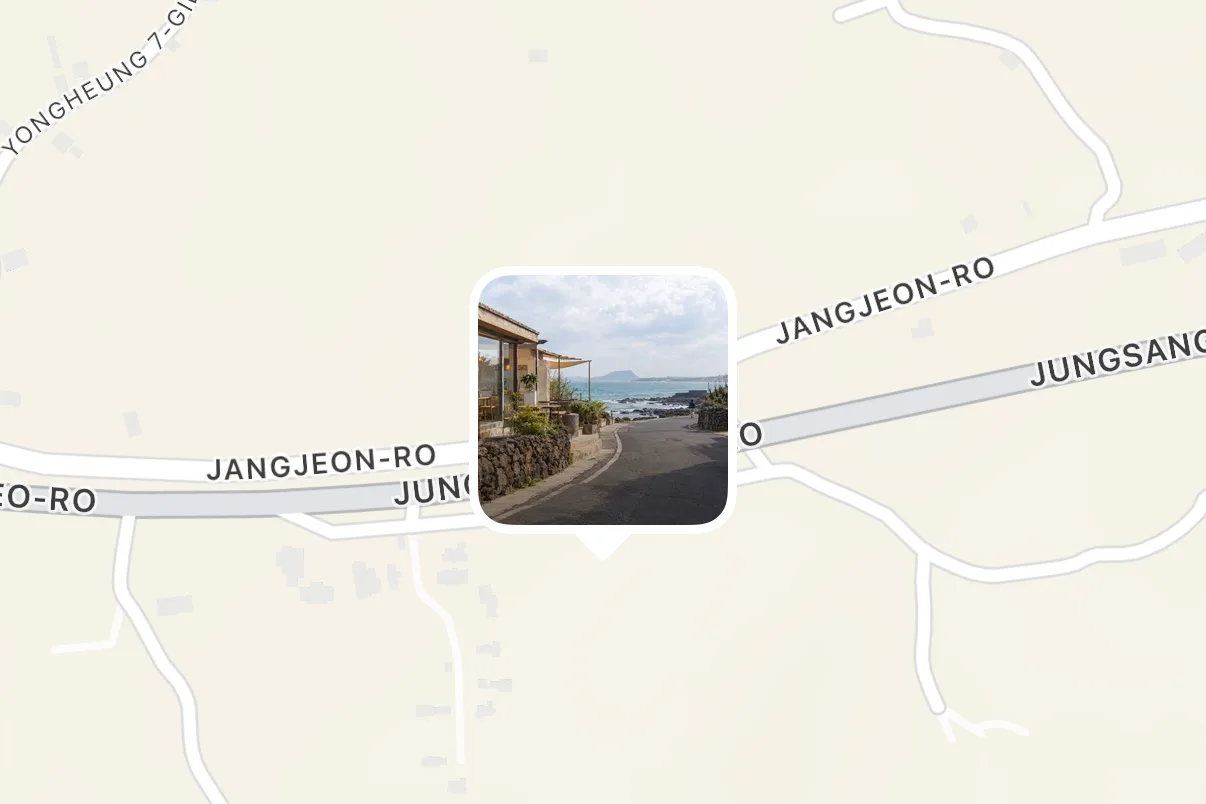
You open a photo to find it on the map, and the location is blank. Usually one of two things happened: the camera never recorded it, or it was dropped on the way when the photo was sent or uploaded. The original, on the phone that took it, tells you which. If the original has a location and the copy you received or uploaded doesn't, it was lost in transit.
A missing location isn't necessarily a bug. Google Photos and Android leave it out or hide it by default, and an iPhone lets you turn it off when you share. Where a photo was taken is sensitive information, so what matters is being able to choose which photos keep it.
Where the location gets dropped, and where to check
- When
- Taking the photo
- What happens
- If the camera can't use location, none is recorded in the first place
- Where to check
- Location Services for Camera on iPhone; the camera settings on Galaxy and Pixel
- When
- Sharing from an iPhone
- What happens
- Turning off Location under Options sends the photo without it
- Where to check
- Share > Options > Location
- When
- Sharing from Google Photos
- What happens
- New albums, links and conversations leave the location out by default
- Where to check
- In a shared album: Share > Options > Share photo locations
- When
- Uploading to an app or website
- What happens
- Android hides the location from apps you haven't allowed to see it, and an iPhone lets you leave it out in the photo picker
- Where to check
- Whether the location shows after you upload
- When
- Sending through messaging and social apps
- What happens
- There's no official word on whether the location is kept
- Where to check
- The photo info screen on the recipient's phone
| When | What happens | Where to check |
|---|---|---|
| Taking the photo | If the camera can't use location, none is recorded in the first place | Location Services for Camera on iPhone; the camera settings on Galaxy and Pixel |
| Sharing from an iPhone | Turning off Location under Options sends the photo without it | Share > Options > Location |
| Sharing from Google Photos | New albums, links and conversations leave the location out by default | In a shared album: Share > Options > Share photo locations |
| Uploading to an app or website | Android hides the location from apps you haven't allowed to see it, and an iPhone lets you leave it out in the photo picker | Whether the location shows after you upload |
| Sending through messaging and social apps | There's no official word on whether the location is kept | The photo info screen on the recipient's phone |
Check the original first
On iPhone, open the photo in Photos and swipe up, or tap the Info button. If the photo has a location, a map with the photo on it appears below the date and time. To see only photos that have a location, tap Collections, then Map under Pinned (iOS 26). A photo that doesn't show up on that map has no location.
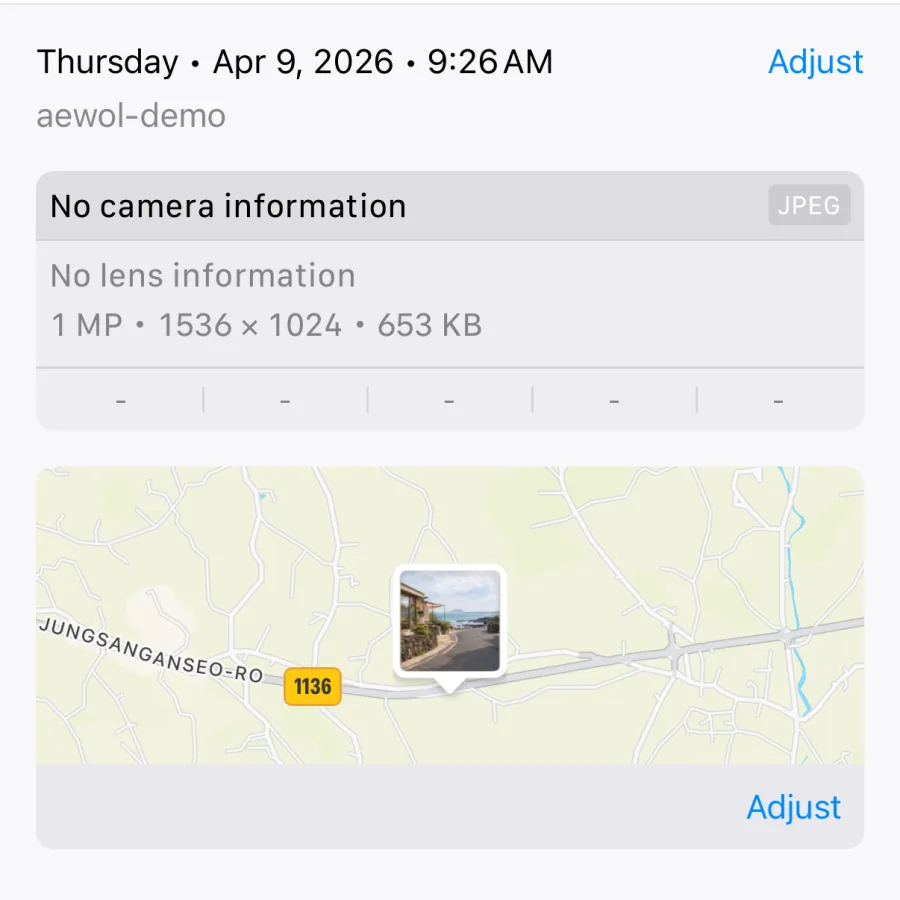
In Google Photos, tap Collections, then Places, to see photos with a location grouped by place. In the Galaxy Gallery app, open a photo and swipe up to see its details, including the location. Menu names vary a little by device and software version.
When the location was never recorded
An iPhone saves a location in photos only when the Camera app can use Location Services. If Settings > Privacy & Security > Location Services > Camera is set to Never, photos won't have one. To turn it back on, choose While Using the App on the same screen. Photos you've already taken won't gain a location, so check with one you take after the change.
On a Galaxy, turn on Location tags in the Camera app's settings. The phone's own location setting needs to be on too. Photos and videos you take after that include a location. Samsung notes that the location is more accurate outdoors, with a clear view of the sky. On a Pixel, turn on Save location in the camera settings.
When it's dropped as you send
When you share a photo from an iPhone, the share sheet says Location Is Included unless you change it. Tap Options and turn off Location, and the sheet shows Location Not Included. Photos you send that way go without a location. If a photo you received has no location, the sender may have turned this off.
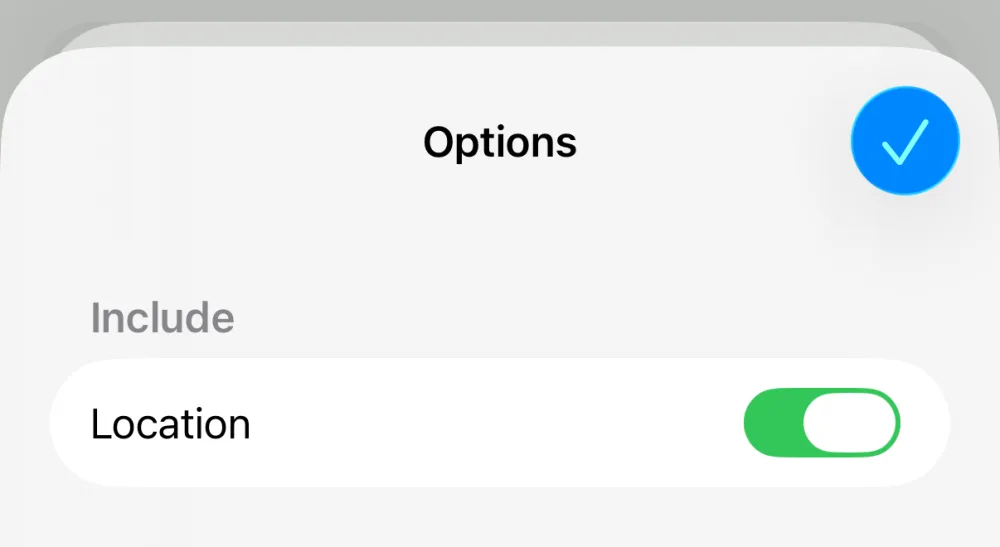
The Galaxy Gallery app also lets you remove location data when you share a photo. If the sender chose that, the recipient won't see a location.
Except for partner sharing, Google Photos leaves location details out of new albums, links and conversations by default. To include them in a shared album, open the album and go to Share > Options, then turn on Share photo locations. Locations that Google Photos estimated aren't shared, even with this setting on.
Messaging apps such as WhatsApp and social apps such as Instagram don't officially say whether the photos you send keep their location. If the location matters, the surest check is to open the photo info screen on the recipient's phone.
When it's dropped as you upload
On Android 10 and later, apps that use scoped storage get photos with the location hidden by default. To read it, an app has to request a separate permission, and you have to allow it. That's why the same photo can show a location in one app and not in another.
On iPhone, a WebKit bug report says photos uploaded to websites through Safari on iOS 16.4 lost their location. Since iOS 17, the photo picker has an Options menu where you choose whether to include the location. If a photo you uploaded to a website has no location, check that option first.
Adding or removing a location afterward
On iPhone, open the photo, tap the More button, then Adjust Info > Adjust Location, and pick a place to add one. Choose No Location there to remove it. Apple doesn't say whether a location you change this way goes along with copies you share.
In Google Photos, you can change or remove only locations you added yourself or that Google Photos estimated. A location your camera recorded can't be changed or removed there. Your edits also don't carry over when you download a photo and email it, for example. The original location saved on your device goes with it instead.
Choosing which photos keep it
A location is a clue that helps you find photos by place later, and it can also reveal where you spend your days. Apple's personal safety guide explains how to share photos without their location. So rather than one rule for everything, decide by where each photo is going.
- Photos that stay on your phone are easier to find later on a map or by place if camera location is on.
- If you want the location in photos you share with family or close friends, check the iPhone share options or the shared album's location setting in Google Photos before you send.
- For photos posted where strangers can see them, consider leaving the location off the ones taken where you spend a lot of time, like home.
Sources
- Apple Personal Safety User Guide: location data in photos
- Apple Support: Location Services settings
- Google Photos Help: photo locations
- Google Photos Help: location details when you share
- Google Photos Help: saving location in your camera
- Samsung: turning on location tags on a Galaxy
- Samsung: removing location data from photos in Gallery
- Android Developers: access media files from shared storage
- WebKit Bugzilla 257534: location data removed from iOS photo uploads